
Everse Home Screen
Everything on your dash, on one screen.
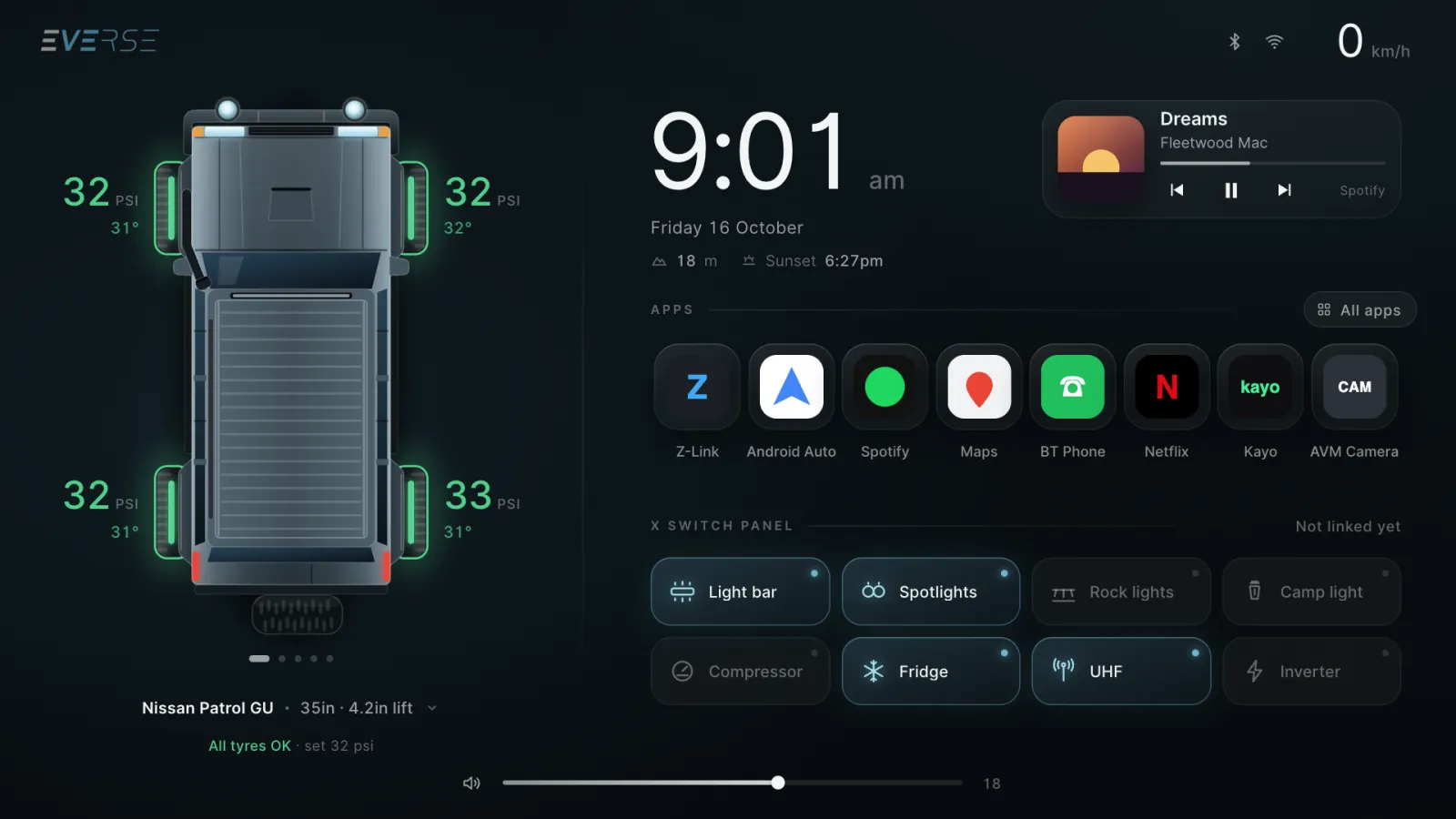
Live tyre pressures beside your vehicle, the apps you use every day, a map with your saved spots and a clean view once you're moving. Built for Everse head units.
On your head unit
Open Chrome on the head unit and type this address:
You're on a phone or computer right now. The app installs on the head unit, so open the address above there.
What you get
Every part can be switched on or off. Hold the clock to open Everse settings.
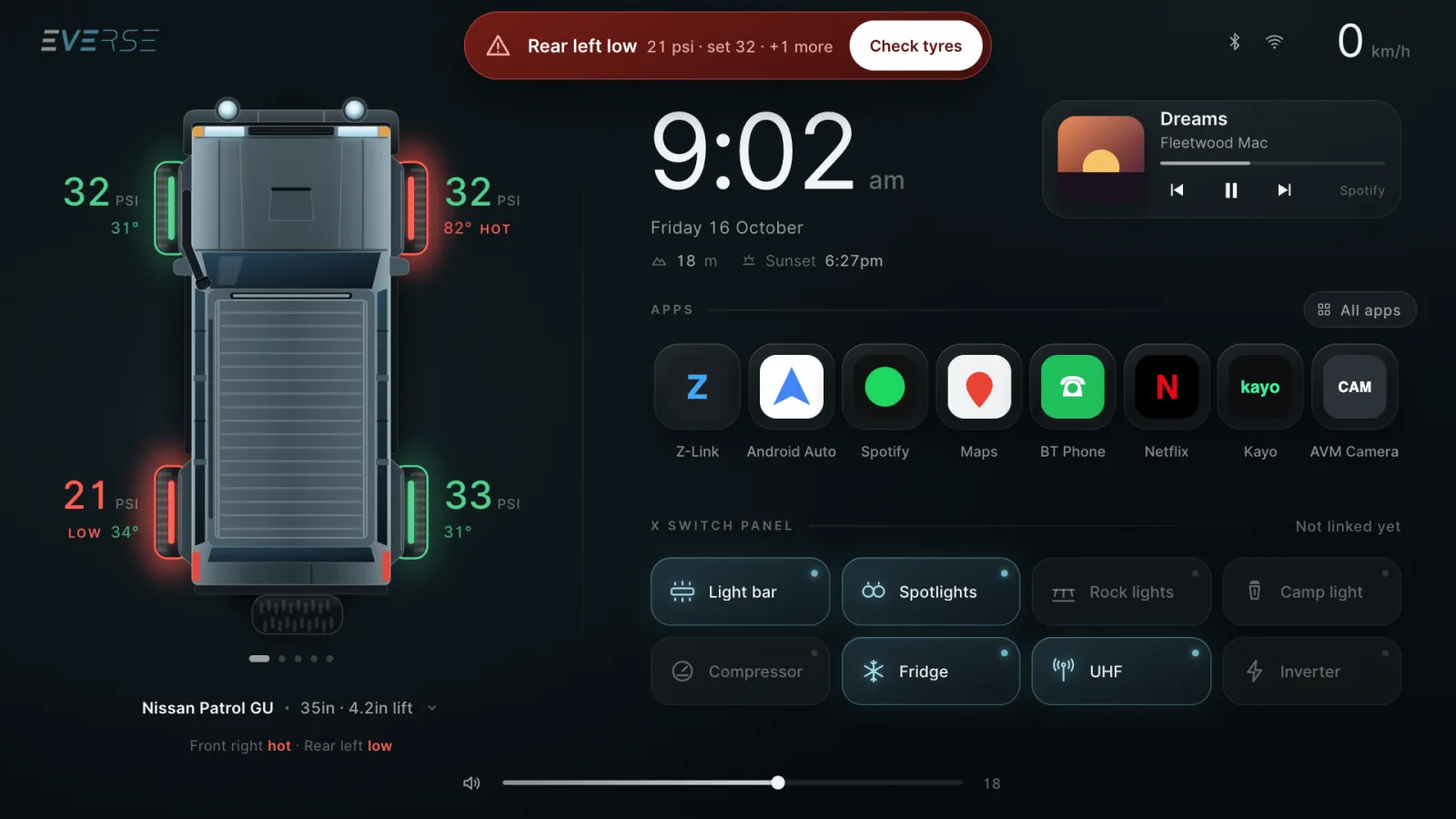
Tyres at a glance
Pressure and temperature at each wheel, read live from your Everse TPMS kit. A low or hot tyre shows a warning, even when another app is open.
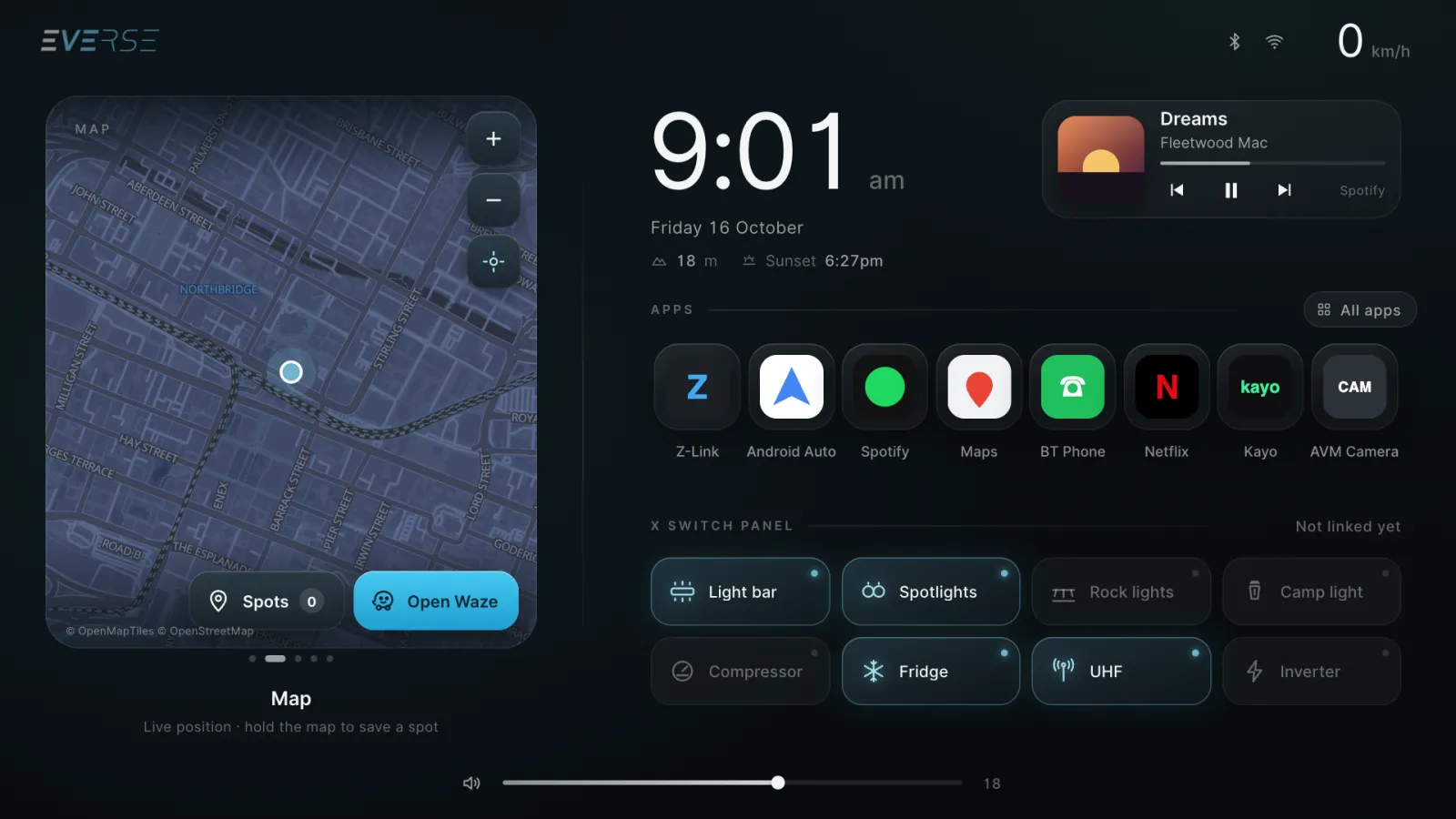
Map and saved spots
Your position on a live map. Hold the map to save a campsite, a track head or a fuel stop, then open it in Google Maps or Waze, or share it.
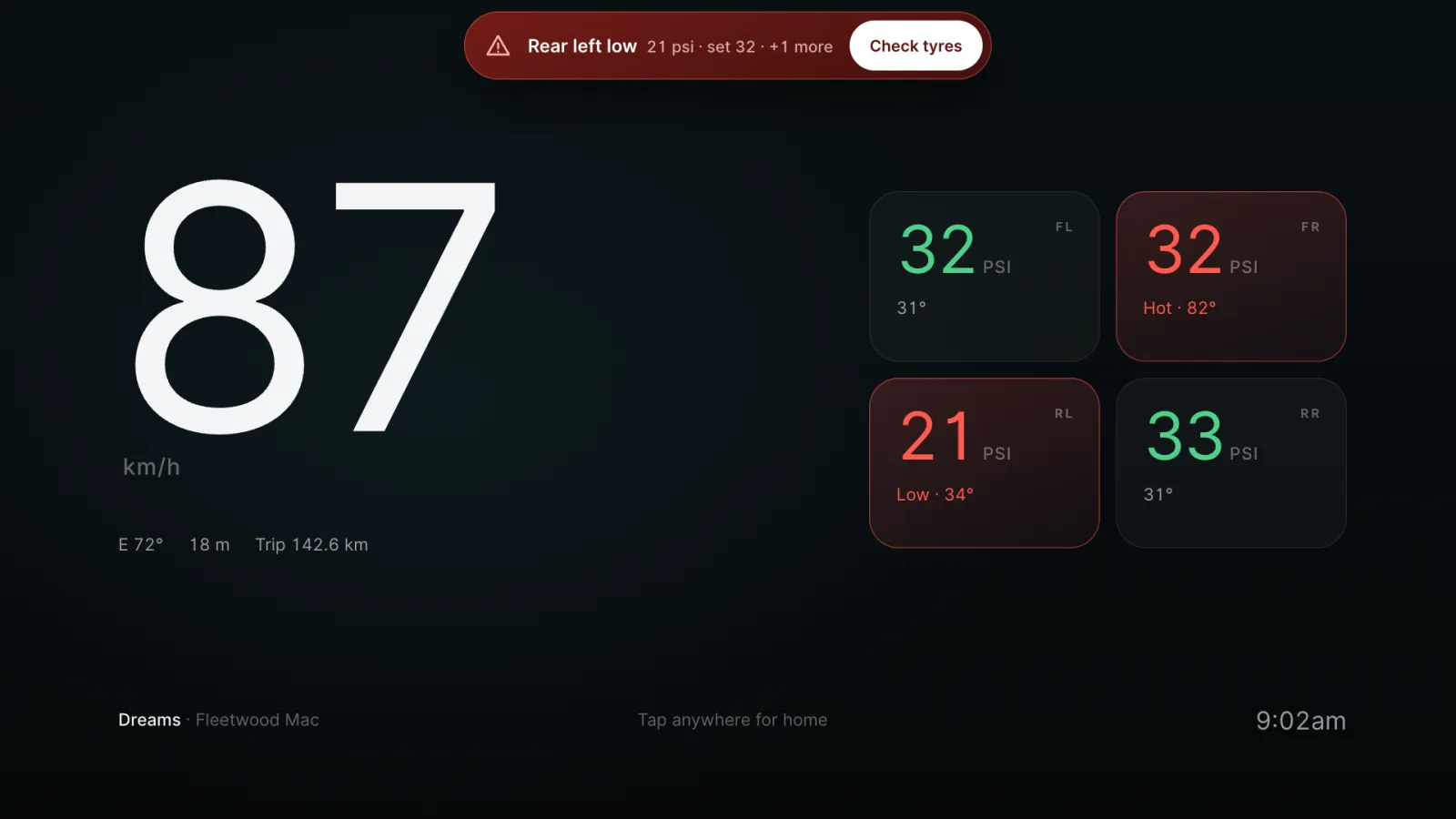
Drive view
Over 20 km/h the screen switches to big speed and tyre readouts with your heading and trip. Tap anywhere to go back.
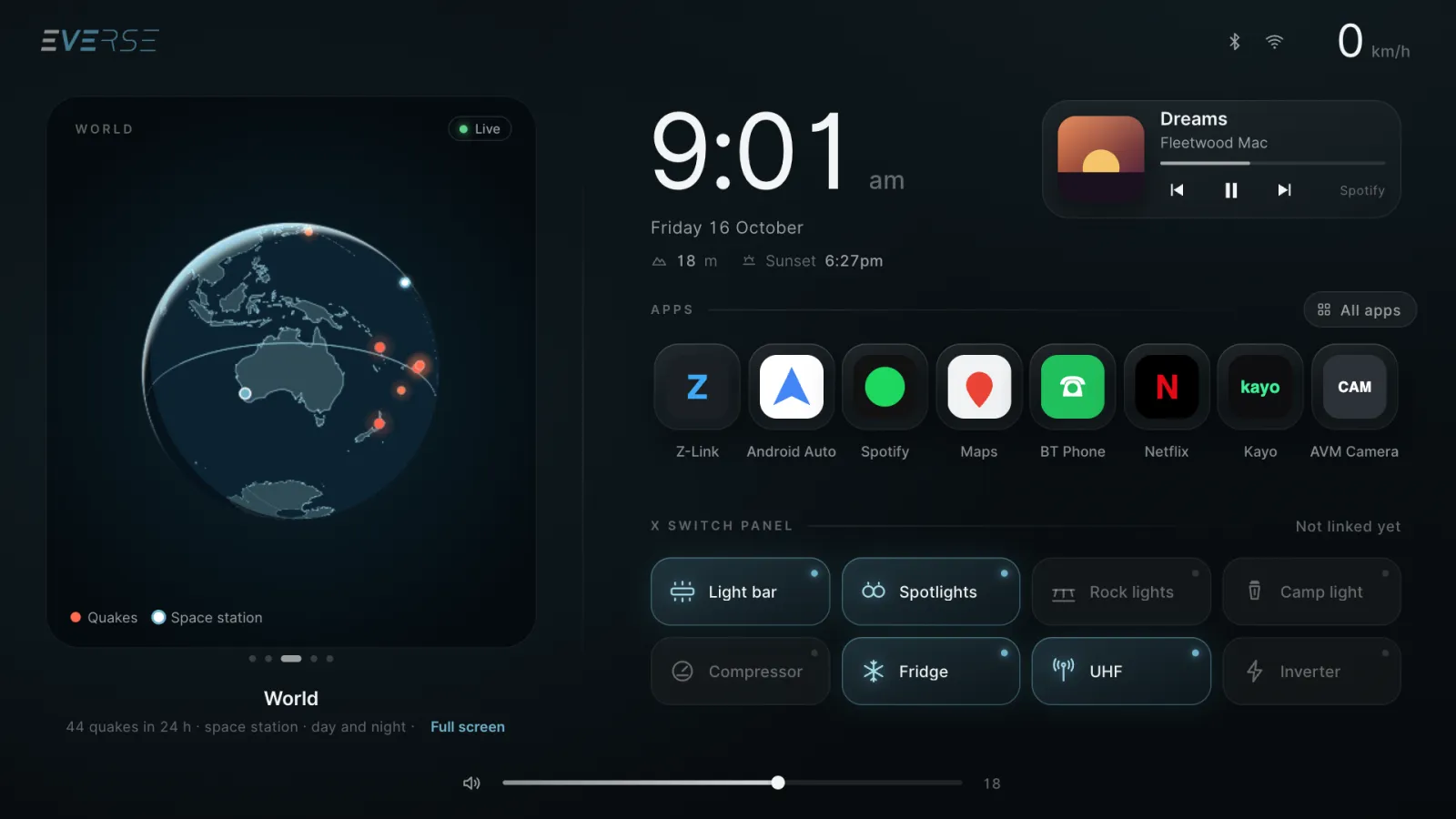
Trip, world and more
A trip counter, heading, altitude and sunset time, now playing controls, a night theme after dark and a live globe with earthquakes and the space station.
Install in two minutes
You need the head unit on Wi-Fi or a phone hotspot. Nothing is needed on your phone.
- Install it. On the head unit, open eversetraveltech.com/home-screen, tap Download Everse Home, then open the file and tap Install. If Android asks, switch on Allow from this source, or tap More details then Install anyway.
- Open it. Tap Open and allow location when asked. It runs the speed, map, trip and sunset time.
- Turn on the Everse helper. Tap Turn on on the Turn on Everse helper bar at the top, then tap Everse Home and switch it on. If it says Restricted setting, go to Settings > Apps > Everse Home, tap the three dots, tap Allow restricted settings, then switch it on again.
- Make it your home screen. Press Home, pick Everse Home and tap Always.
That's it. The glass volume slider now floats over CarPlay and every app, and Home keeps you on Everse. Hold the clock any time to open Everse settings.
Your old home screen stays on the unit and you can switch back any time (see below).
No browser on your unit?
Some units ship without one. Use a USB stick instead.
- On a phone or computer, open eversetraveltech.com/home-screen and download the file. Save it to a USB stick (formatted FAT32 or exFAT).
- Plug the stick into the head unit. Open the unit's Files or File manager app, open the stick and tap everse-home.
- Tap Install, then carry on from step 2 above.
Something not working?
- "App not installed". Make sure the whole file downloaded (it's about 2.3 MB), then try again. If you installed an earlier Everse Home beta, remove it first: Settings > Apps > Everse Home (beta) > Uninstall. The beta and this version are separate apps and can't update each other.
- The download won't open. Open the Files app, go to Downloads and tap the file from there. Chrome's download list is under its menu.
- Home button still opens the old screen. Check the Everse helper is on (step 3), then use the Set it banner, or Settings > Apps > Default apps > Home app. Some head units keep Home tied to their own screen. If yours does, message us your unit and vehicle and we'll help.
- No tyre readings. Check the receiver is plugged in firmly, allow USB access, and make sure each sensor is paired. Tap the car on the home screen for the tyre detail.
- No speed or map. Allow location: Settings > Apps > Everse Home > Permissions > Location. The unit needs a clear sky view for its first GPS fix, which can take a minute.
- Still stuck? Email sales@eversetraveltech.com with your head unit model, Android version (Settings > About) and what you see on screen.
What it needs
Your head unit
Android 8 or newer, with a landscape screen. Most Android head units from the last few years qualify.
Settings > About shows your Android version.Location
Speed, the map and saved spots, trip distance, heading, altitude and the sunset time. Optional: the rest works without it.
Used on the head unit only. Everse never receives or stores where you are.Updates
Apps from our site don't update through the Play Store, so the home screen tells you when a new version is ready. Tap Download and install it over the top.
Your settings and saved spots are kept.Privacy: your location is used on the head unit to draw the speed, map and trip. It's never sent to Everse. The map downloads street tiles for the area on screen, like any map app.
Going back to your old home screen
- The quick way: hold the clock to open Everse settings, switch off Keep Everse as Home, then scroll to Go back and tap Switch back. Pick your original home screen and tap Always. Everse Home stays installed for whenever you want it.
- Or from Android: switch off the Everse helper in Settings > Accessibility, then Settings > Apps > Default apps > Home app and pick your original home screen.
- To remove it completely: in Everse settings tap App info under Go back, then Uninstall. Or Settings > Apps > Everse Home > Uninstall. Your old home screen comes straight back.
Some head units keep the Home button tied to their own screen. If yours does, let us know and we'll help set it up.
It's a beta. Tell us what you think.
You're one of the first to try it. What you like, what's missing and anything that doesn't work on your unit all shape what we build next. Tell us your head unit and vehicle so we can check it.
Send feedback